“Every time I open the assembly, I have time to make coffee…”
“I just rotate the model a little and the screen stutters, so I can’t even select the face I want…”
Do these waiting times frustrate you in your daily design work?
When you design in SOLIDWORKS, how fast your PC runs directly affects both your efficiency and your stress level.
But simply buying an expensive PC doesn’t guarantee that SOLIDWORKS will run faster.
When you choose a PC, you need to focus on the hardware components that actually matter to SOLIDWORKS.
If you miss them, even an expensive workstation won’t feel comfortable.
On the other hand, if you get them right, you can build a smooth setup even on a limited budget.
In this article, I, a working mechanical engineer, explain how to choose the right PC the first time.
Let’s get you a setup where you can forget about spec-related stress and focus on your design work!
The Short Answer: Recommended SOLIDWORKS Specs at a Glance (2026)
The specs you need depend on how many parts your assemblies contain and what you use SOLIDWORKS for.
Find your own use in the table below and pick the matching class.
| Class | Number of parts (rough guide) | CPU (latest generation) | Memory | Graphics card (GPU) | Typical use |
|---|---|---|---|---|---|
| Entry (personal / SOLIDWORKS for Makers) | Up to 500 | Core Ultra 5 Core i5 | 16 GB | RTX 500 / 1000 Ada (formerly T600 / T1000) | • Part modeling • Simple jigs • Learning |
| Mid-range (professional work) | 501 to 10,000 | Core Ultra 7 Core i7 | 32 GB | RTX 2000 Ada (formerly RTX A2000) | • Product design • Machine design |
| High-end (simulation / large assemblies) | Over 10,000 | Core Ultra 9 Core i9 / Xeon | 64 GB or more | RTX 4000 Ada or higher (formerly RTX A4000 or higher) | • Large-scale equipment • Simulation (CAE) • Rendering |
If you can’t decide, mid-range is the right choice
For many professional designers, the mid-range combination (Core Ultra 7 + 32 GB of memory + RTX 2000 Ada) is the best balance of price and performance.
Unless you work with assemblies of over 10,000 parts or run advanced fluid simulations, this configuration should keep you from feeling stressed by a lack of specs.
It is not overkill. Think of it as the baseline for comfortable design work.
Official SOLIDWORKS System Requirements
The PC specs needed to run SOLIDWORKS are published on the SOLIDWORKS website. Here are the main items (checked on November 7, 2026).
| Item | Official requirement |
|---|---|
| Operating system | Windows 11, 64-bit. Windows 10, 64-bit: supported up to SOLIDWORKS 2025 SP5, not supported in SOLIDWORKS 2026 |
| Processor | x86_64 (Intel 64 or AMD64) |
| Memory (RAM) | 16 GB (32 GB recommended) |
| Graphics / GPU | Certified cards and drivers |
| Drive | SSD recommended for optimal performance |
With these official requirements in mind, I explain below how I decide on a configuration.
The Golden Rule of Budgeting: Prioritize Memory > CPU > Graphics Card

Nobody has an unlimited PC budget.
To get a comfortable setup at a good price, the surest approach is to invest in this order: “remove the risk of it not working,” then “buy speed.”
My priority order is “Memory > CPU > Graphics card.”
You might think, “Isn’t the graphics card (GPU) the most important?” But when it comes to budget allocation, it actually comes third. Here is why.
[Top priority] Memory (the key to stability)
This is a hard minimum.
If you don’t have enough memory for the amount you need (for example, the recommended 32 GB), SOLIDWORKS doesn’t just slow down. It can crash or freeze, and you can’t get any work done.
Before you chase speed, think of it as buying stability first, and secure the memory before anything else.
[Second] CPU (the key to saving time)
Once stability is secured, the next investment is in reducing waiting time.
SOLIDWORKS processing speed depends heavily on CPU performance.
If you want to cut the few seconds of waiting you face every day and boost your efficiency dramatically, spend your money on the CPU.
[Third] Graphics card (depends on your budget)
Last is the part that determines how smooth the screen feels.
A more powerful card is of course better, but today’s SOLIDWORKS-certified graphics cards are surprisingly capable even at the entry level (RTX 500 / 1000 Ada and similar), and for small models they run reasonably well.
Even if you lower the grade of the card a little, you can still get your work done, so I think it’s best to decide on the graphics card last, based on your budget.
A Detailed Guide to Choosing Each Part
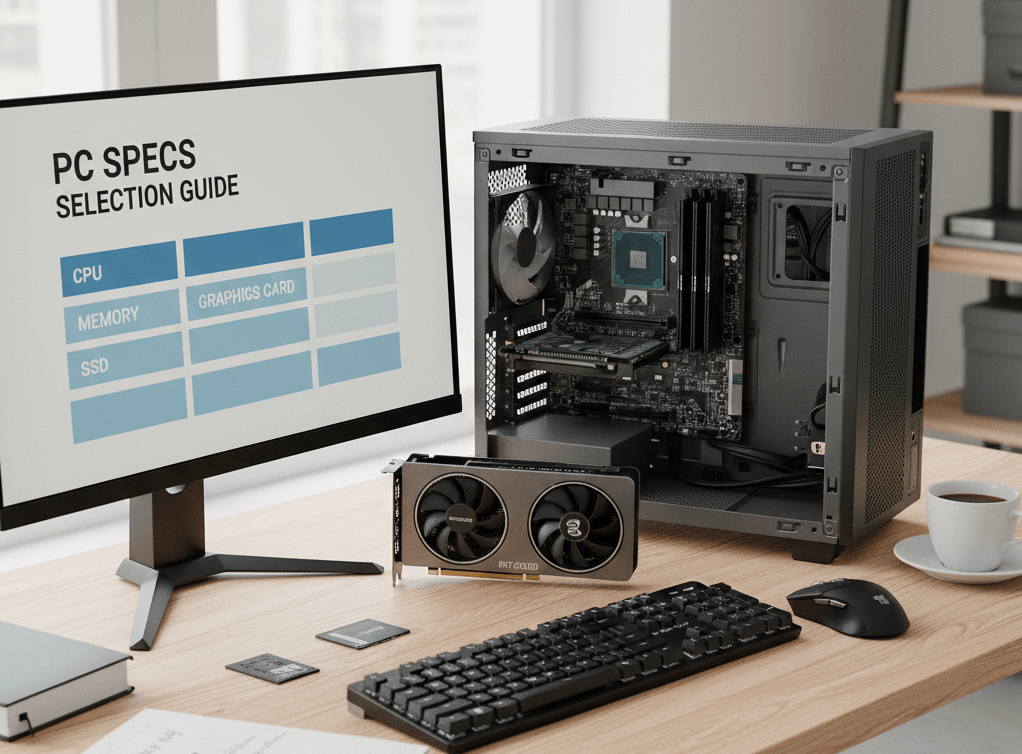
Let’s look at what to base each choice on. The impact stars show how much each part affects how SOLIDWORKS feels in use, which is a separate ranking from the budget priority above.
OS: Windows 11 (64-bit) is the only choice for a new PC
- Impact: ★★★★★ (prerequisite)
- Role: The foundation that runs your PC.
- How to choose:
- Microsoft has ended support for Windows 10, so it is a security risk. SOLIDWORKS 2026 doesn’t support it either (see the table above). Be sure to choose Windows 11.
- For Mac users: SOLIDWORKS is not available for macOS. The official system requirements also state that Apple Mac machines running Windows with Boot Camp (Apple’s feature for running Windows on a Mac) are not supported, so be sure to get a Windows PC.
CPU: clock speed matters more than core count
- Impact: ★★★★★ (processing speed)
- Role: Calculations such as rebuilding, creating features, and opening files.
- How to choose:
SOLIDWORKS modeling work is basically done on a single core. So a CPU with fewer cores but a higher clock speed per core will run faster than one with many cores. - Guideline: Check the “maximum turbo frequency” on the spec sheet and choose a CPU with 4.0 GHz or higher (4.5 GHz or higher is better). If it reaches 4.0 GHz or higher, even a used CPU is likely to run smoothly.
Recommended series: Intel Core Ultra series
The official requirements only list an x86_64 processor (Intel 64 or AMD64) and do not name a specific series, so the Intel series below are my own recommendation.
- Core Ultra 5: for tight budgets and learning
- Core Ultra 7: right in the middle of professional work (recommended)
- Core Ultra 9: high-end
What to avoid: Celeron, Pentium, and Atom are too underpowered to run SOLIDWORKS.
By the way, do you need a Xeon?
For general design work, Core Ultra is enough (and often faster).
Xeon shows its real value in places like a simulation server that runs around the clock.
Note: when many cores pay off
Clock speed comes first, but if you often do the following work, a CPU with more cores gives you an advantage.
- Structural analysis (CAE): It involves huge matrix calculations, so parallel processing on multiple cores helps a lot. Speed does not grow in proportion to the core count, though, and it levels off at some point. It is generally said that the benefit is large up to about 8 to 12 cores.
- Rendering: Multi-core performance helps almost linearly.
- Drawing processing: Tasks such as hidden line removal (calculating overlapping lines) in drawings are processed on multiple cores in the background.
- Multitasking: If you use many apps at once alongside SOLIDWORKS, such as a browser and Excel, having multiple cores makes things more stable.
Memory (RAM): the new standard in 2026 is 32 GB
- Impact: ★★★☆☆ (stability)
- Role: The size of your work desk. Running short can cause crashes and freezes.
- How to choose:
Memory is not a part that “makes things faster” but a part that “keeps things from getting slower.” If the desk (memory) is small, you end up working with your data on the floor (the SSD), and everything becomes painfully slow. - Guideline:
- 16 GB: [Minimum] This is the official minimum system requirement, but in real work it fills up quickly once you open Excel or a browser alongside SOLIDWORKS. Think of it as a starter level for learning.
- 32 GB: [Recommended] This is the official recommended system requirement and the standard for real work. You can design comfortably even with other apps open.
Recommended memory sizes:
- 16 GB: For getting started and learning (SOLIDWORKS for Makers, for example). Fine for simple parts.
- 32 GB: The standard for real work. You can design comfortably even while looking things up in a browser.
- 64 GB or more: Strongly recommended for large assemblies (over 10,000 parts) and structural analysis (CAE).
Graphics card: NVIDIA RTX (formerly Quadro)
- Impact: ★★★★☆ (comfort and display)
- Role: Display processing such as rotating, zooming, and panning the model.
- How to choose:
If this part is weak, the model stutters when you rotate it and the stress builds up. Gaming cards (GeForce) are good at effects like explosions, while CAD cards (RTX/Quadro) are good at drawing accurate lines (OpenGL). For work, choose a CAD graphics card. The official requirements also call for certified cards and drivers. - Guideline (graphics memory):
- 4 GB: [Minimum] Works for learning.
- 8 GB to 12 GB: [Recommended] The class to choose if you want to work comfortably.
- 24 GB or more: [Power machine] For simulation or large assemblies.

CAD graphics cards have model names that start with “NVIDIA RTX,” “NVIDIA T,” or “Quadro.” Cards named “GeForce” are the gaming ones.
By the way, why not the gaming card “GeForce”?
It does run, but you may see display problems such as “lines disappear,” “faces can’t be selected,” or “RealView doesn’t work.” (RealView Graphics is SOLIDWORKS’ realistic display mode.)
It may be good enough for hobby or learning use, but for work, choose a CAD card to avoid the risk.
Recommended models (as of 2026):
- Entry: RTX 500 Ada / RTX 1000 Ada (for small models)
- Mid-range: RTX 2000 Ada (when in doubt, this one! The best-value standard for work)
- High-end: RTX 4000 Ada / 5000 Ada (for large assemblies, VR, and rendering)
Storage: time to leave HDDs behind. SSD is the only choice
- Impact: ★★★★☆ (startup speed)
- Role: Starting the OS and software, and reading and writing data.
- How to choose:
There is not much to debate here. On a PC whose system drive (C drive) is an HDD, you wait minutes just for it to start up.
Be sure to choose a model with an SSD (512 GB or more). The official requirements also recommend an SSD. Use an HDD only for backup storage.
Capacity:
- 512 GB: The minimum. It tends to fill up once you install the OS and apps.
- 1 TB: Recommended. You won’t have to worry as your data grows.
Which Part of Your PC Is the Problem? Symptoms and Fixes (FAQ)
“My current PC feels slow, but I can’t tell why…”
For anyone with that problem, here are common symptoms and the part most likely responsible.
Q1. Opening files is slow, or rebuilds never finish
- The culprit is… the CPU or the storage
- Explanation: How long you wait depends on calculation speed (CPU) or data loading speed (storage).
- Fix:
- Check the disk usage in Task Manager. If you are using an HDD, switching to an SSD alone can make a dramatic difference.
- If you already have an SSD, the CPU clock speed is the limit. Consider replacing the PC.
Q2. The model stutters or leaves ghost trails when I rotate it
- The culprit is… the graphics card
- Explanation: The display processing can’t keep up. There are mainly two possible patterns.
- You are using a GeForce: Gaming cards are not good at the display processing CAD needs, so they can stutter even on high-spec models.
- You are using a certified card that is underpowered: Even with a Quadro or RTX series card, an entry-level model (such as the T1000) can stutter from lack of power when you rotate a large assembly.
- Fix:
- Review the settings under System Options > Performance in SOLIDWORKS.
- If that doesn’t help, consider moving up to a higher-tier graphics card (for example, from RTX 500 to RTX 2000 or higher).
Q3. It suddenly crashes (shuts down) or freezes while I work
- The culprit is… the memory
- Explanation: This is the most dangerous symptom. The work desk (memory) is full for the task, and the PC has hit its limit. If the mouse pointer still moves but SOLIDWORKS freezes, or the software suddenly shuts down, it is most likely a lack of memory.
- Fix:
- Add more memory.
- Changing settings can’t solve this one. It is the top priority to invest in before your work grinds to a halt.
Summary: Invest in the Right Work Tool
In this article, I explained how to choose specs so that SOLIDWORKS runs comfortably.
- Budget priority: Memory > CPU > Graphics card
- Memory: 32 GB is the standard for real work
- CPU: Clock speed matters more than core count
- Graphics card: Decide based on your budget
If you stick to these criteria, you won’t be stressed by lack of specs, and you won’t regret buying an unnecessarily expensive PC.
A workstation is a “work tool” that lets you make the most of your design skills and generate profit.
Investing in a workstation comes back to you as work efficiency.
I hope this article helps you find the PC that suits you best.





Here’s the short version. Memory gives you peace of mind that it won’t crash, the CPU buys you processing speed, and the graphics card buys you smooth motion on screen!