If you have never used 3D CAD before, choosing your first 3D CAD software matters a lot.
Each CAD program works differently, so it takes a long time to get used to one.
If you start with one, find it hard to use, and switch to another, you have to spend time and effort getting used to a new set of operations all over again.
Among the many 3D CAD programs out there, the one I recommend is SOLIDWORKS.
My reasons are its rich set of functions and tools that make design easier, and the fact that it is widely used by companies.
For more details, see this article.
»Autodesk Fusion vs SOLIDWORKS for Beginners: Which Free or Low-Cost 3D CAD Should You Pick?
To use SOLIDWORKS, you normally need to buy a commercial license that costs many times more than SOLIDWORKS for Makers.
However, for limited purposes such as hobby projects or practicing 3D CAD, you can use a very low-priced version of SOLIDWORKS.
This article explains SOLIDWORKS for Makers, the product you can use at that very low price.
It covers the differences from commercial SOLIDWORKS and the installation steps, in plain language.
If you want to try SOLIDWORKS for personal use, please read on.
- want to keep improving and practice SOLIDWORKS at home
- want to use SOLIDWORKS for creative hobby projects
- are curious and want to see how useful SOLIDWORKS is
What Is SOLIDWORKS for Makers?
The official name of SOLIDWORKS for Makers is 3DEXPERIENCE SOLIDWORKS for Makers.
It is a personal version of SOLIDWORKS offered directly by Dassault Systèmes.
It is a different product from the SOLIDWORKS sold through resellers.

In this article, I call the SOLIDWORKS you buy from a reseller "commercial SOLIDWORKS" to tell it apart from SOLIDWORKS for Makers.
Keep that in mind as you read.
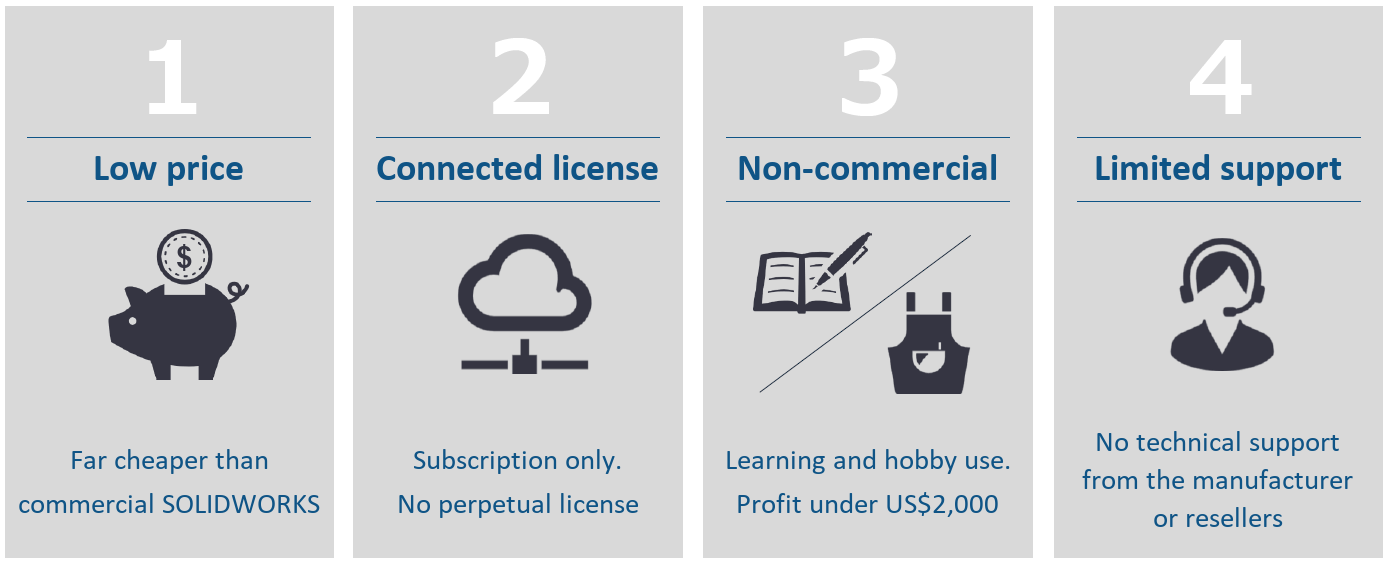
SOLIDWORKS for Makers has the following four main characteristics.
- Very low price (US$48 per year or US$15 per month, excluding taxes, as of November 2026)
- Sold only as the subscription-based, cloud-connected Connected license
- Limited to non-commercial use (you may sell what you make for a profit of up to US$2,000 a year)
- Limited support
There are also differences from commercial SOLIDWORKS, so please keep them in mind.
I list the main ones near the end of this article.
If you want to know more about the differences between commercial SOLIDWORKS and SOLIDWORKS for Makers, please read this article.
»SOLIDWORKS for Makers: What You Can and Can’t Do
There is also a similar license called SOLIDWORKS xDesign for Makers.
It is also a personal product offered directly by Dassault Systèmes, but you cannot use SOLIDWORKS with it.
It lets you use xDesign, the cloud-based app in the SOLIDWORKS family.
How to Get Started with SOLIDWORKS for Makers
There are five steps to get started with SOLIDWORKS for Makers.
- Prepare a CAD PC
- Create a 3DEXPERIENCE ID (user account)
- Buy a license
- Install
- Launch
I will explain each step in detail.
Some of my screenshots were taken with a Japanese-language interface, so for those steps I describe the screen in words instead.
Where a screen is already in English, I use the original screenshot.
Prepare a CAD PC
To use SOLIDWORKS for Makers, you need a workstation with a graphics card.
There are two points to check when choosing a workstation.
- It meets the SOLIDWORKS system requirements
- It passes the cloud eligibility check
System requirements
A configuration that meets the SOLIDWORKS system requirements looks like this.
| OS | Windows 11, 64-bit (macOS is not supported) |
| CPU | 64-bit Intel or AMD |
| Memory (RAM) | 16 GB or more |
| Graphics card | Certified graphics card and driver |
| Drive | SSD recommended |
For details, see the SOLIDWORKS website.
Dassault’s Makers FAQ says the SOLIDWORKS Connected app cannot be installed on a Mac. Choose Windows 11, the OS listed in the official SOLIDWORKS 2026 requirements.
If you are not sure how to choose a workstation or decide on its specs, this article explains it in detail.
»SOLIDWORKS PC Specs 2026: How to Choose the CPU, RAM, and GPU
Cloud eligibility
Like the subscription-based Connected license of commercial SOLIDWORKS, SOLIDWORKS for Makers requires your PC to pass a cloud eligibility check.
The 3DEXPERIENCE website has a Cloud Eligibility page. Click Test your compatibility to download a check file. Run the downloaded file to check your PC. According to that page, the tool runs on Windows and needs internet access.
Create a 3DEXPERIENCE ID
To use SOLIDWORKS for Makers, you need a 3DEXPERIENCE user account (a 3DEXPERIENCE ID).
Go to the Dassault Systèmes website (the company behind SOLIDWORKS) and create a new account.
Click the account button at the top right.
Choose the option to create a 3DEXPERIENCE ID.
Fill in the required fields, starting with your email address, and click the register button.
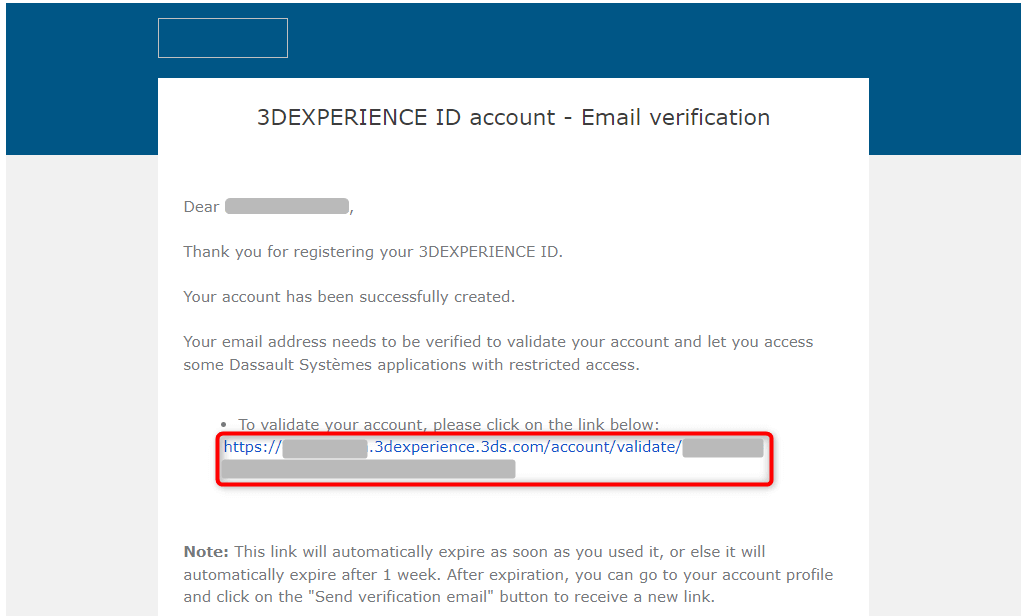
A message titled 3DEXPERIENCE ID account – Email verification arrives at the email address you registered.
Click the link below "To validate your account,…" to finish registering your account.
Buy a License
Next, buy a SOLIDWORKS for Makers license.
You can buy online with a billing address in the countries listed in the official Makers FAQ. Prices are shown in the currency linked to your billing address, so they may appear in your local currency.
Go to the SOLIDWORKS for Makers website and click the buy button for 3DEXPERIENCE SOLIDWORKS for Makers. (Do not pick SOLIDWORKS xDesign for Makers, which does not include SOLIDWORKS.)
You can change the plan on the next screen, so it does not matter whether you pick yearly or monthly here.
Click the account icon at the top right and log in with the account you just created.
Select a subscription plan.
Prices were revised on November 20, 2023. As of November 2026, Dassault’s official FAQ lists US$15 per month or US$48 per year, excluding taxes. Prices may change, so check the current price on the official site.
If you will use it for four months or more, the yearly subscription costs less (four months of the monthly plan add up to US$60, against US$48 for a year). In this walkthrough, though, I chose the monthly subscription.
After selecting a plan, click the button to proceed to checkout.
Check that the information in the cart is correct, then click the button at the bottom right to go to payment.
A form for your billing address appears. Fill in the required fields and click the next button.
The individual/company selection and the name fields appear to be locked because they are linked to your 3DEXPERIENCE ID.
The same screen has a contact section. Click the edit button to enter a phone number, read the terms of use, and check the box to agree.
Finally, enter your payment details. Dassault’s FAQ lists Visa, Mastercard, Amex, and UPI as payment methods. After filling in everything, click the button to confirm your order.
When the purchase is complete, a confirmation message appears.
You will also receive two emails from Dassault Systèmes at the email address you registered.
The first one is the subscription confirmation email.
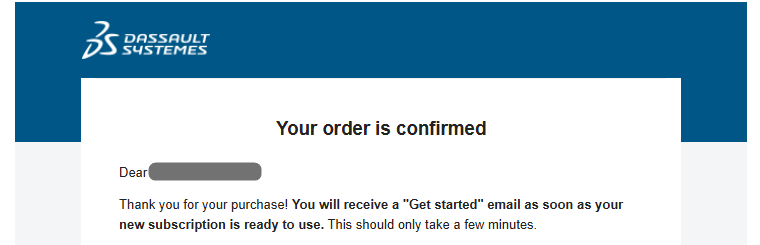
The email shows the plan you chose (monthly or yearly), the subscription expiry (renewal) date, and the amount charged. Check that they are what you expect.
The subscription is renewed automatically when its term ends.
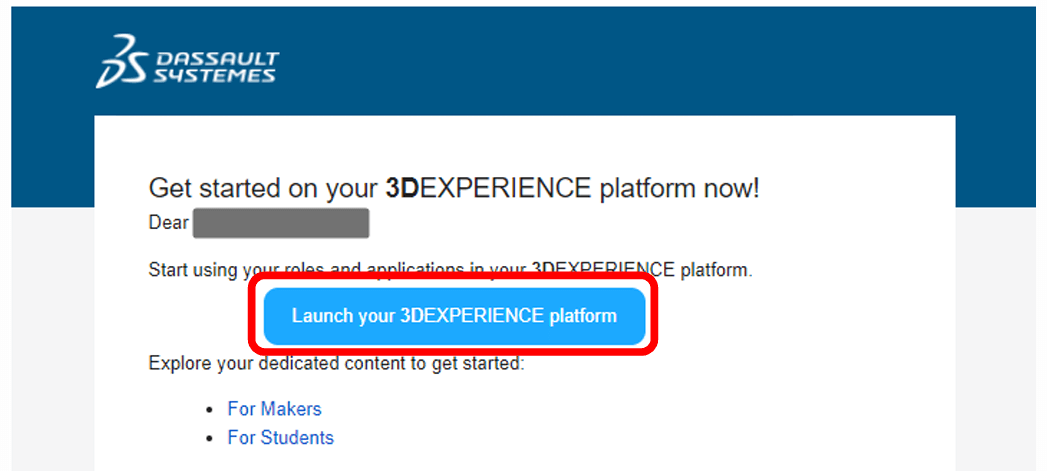
The other email tells you that your subscription is ready to use.
Click the Launch your 3DEXPERIENCE platform button in the email and go on to the installation steps.
Install SOLIDWORKS Connected
Now it is time to install SOLIDWORKS. The installer screens in this section were captured in 2023, so what you see today may differ slightly.
The link button in the email takes you to the 3DEXPERIENCE dashboard.
Bookmark this link.
If you lose it, Dassault’s FAQ says you can log in at solidworks.com/maker-cloud.
Click the compass (the round button at the top left of the dashboard).
In the list on the left, click SOLIDWORKS Connected.
If this is your first time using the 3DEXPERIENCE platform, a window appears asking you to download the 3DEXPERIENCE Launcher.
Click the button to download the 3DEXPERIENCE Launcher, then follow the steps in that window.
Run the 3DEXPERIENCE Launcher file you downloaded.

The 3DEXPERIENCE Launcher installer starts.
If you see no error messages, just follow the wizard on the screen.


Next, a message like the one below appears.
It asks whether to trust a third-party URL. Check that the URL shown matches your 3DEXPERIENCE dashboard URL, and if it does, click Always.

You return to the 3DEXPERIENCE dashboard.
Click the option to install all roles, including SOLIDWORKS Connected. (Roles are the apps and tools your subscription gives you access to.)
The 3DEXPERIENCE installer starts. Click Next.
SOLIDWORKS for Makers is a cloud-based license, so you need to check that your PC meets the cloud eligibility requirements.
To check, click the 3DEXPERIENCE Platform on Cloud support link shown on this screen. It is the same page I described above.
Once you have confirmed cloud eligibility, click Next.
Click Next on the screen that asks for the installation folder.
Click Next on the screen that asks for the Toolbox / Hole Wizard data location.
In some cases, a Java Runtime Environment message appears. It says that a 64-bit Java Runtime Environment (JRE) is not installed or could not be detected, and that a Java 11 runtime (for example, Oracle JDK 11.0.8 or AdoptOpenJDK OpenJ9 JRE 11.0.8) is required.
If you see this message, install JDK 11 first.
If no error appears, the installer continues like this. Click Install here.
The files are downloaded and installed.
It depends on your internet connection, but in my case it took about an hour.
Plan for some waiting time.
When the installation finishes, the final screen appears. Click Close to end the installation.
That completes the installation of SOLIDWORKS Connected.
With these steps, you can use SOLIDWORKS for Makers.
Launch SOLIDWORKS
To launch SOLIDWORKS for Makers, you need to log in to the 3DEXPERIENCE platform (the dashboard you bookmarked).
From the dashboard, click SOLIDWORKS Connected.
When SOLIDWORKS starts, a splash screen shows the logo, a 3D model, and the status.

SOLIDWORKS is now running.
It used to be displayed as "SOLIDWORKS Connected Makers", but after an update it now starts with the screen above.
I took this screenshot with SOLIDWORKS Design 2026.
The interface is not very different from commercial SOLIDWORKS, but the icons in the FeatureManager design tree carry an additional mark: a gear with an "m" inside.
Good to Know: Differences from Commercial SOLIDWORKS and Canceling
Two things are worth knowing before you start: how SOLIDWORKS for Makers differs from commercial SOLIDWORKS, and how to cancel.
Differences from Commercial SOLIDWORKS
SOLIDWORKS for Makers offers most of the functions of commercial SOLIDWORKS, but there are a few differences.
Please check the differences carefully before you buy. Pay special attention to the things you cannot do with SOLIDWORKS for Makers.
- Files created in SOLIDWORKS for Makers can’t be opened in commercial SOLIDWORKS
- No technical support from Dassault Systèmes or resellers (help comes mainly from the Maker Support community)
- Profit from selling what you make is capped at US$2,000 a year
The differences between commercial SOLIDWORKS and SOLIDWORKS for Makers are explained in detail in this article, so please read it before you buy.
»SOLIDWORKS for Makers: What You Can and Can’t Do
Canceling Your Subscription
SOLIDWORKS for Makers is a one-year or one-month subscription.
The subscription is renewed automatically, so if you do not want to keep using it, you need to cancel it.
For both yearly and monthly subscriptions, you must cancel at least 5 days before the renewal date, so please be careful.
I did not capture the cancellation screens. According to Dassault’s Makers FAQ, you can manage your subscription in the Subscriptions tab of your Platform Management cockpit, so start there.
Summary
This article explained how to install SOLIDWORKS for Makers.
SOLIDWORKS for Makers is a very attractive product that lets you use SOLIDWORKS at a very low price.
For US$48 per year (as of November 2026), you can use most of SOLIDWORKS’ functions. For the details, see my review article.
SOLIDWORKS for Makers is limited to non-commercial use, so I recommend it if you want to use SOLIDWORKS for hobbies or to learn it.
I think SOLIDWORKS for Makers is a great tool for enjoying making things.
I hope this guide helps you get started.
Thank you for reading to the end.